LinkedIn Profile Search by Name: Techniques for Common and Rare Names

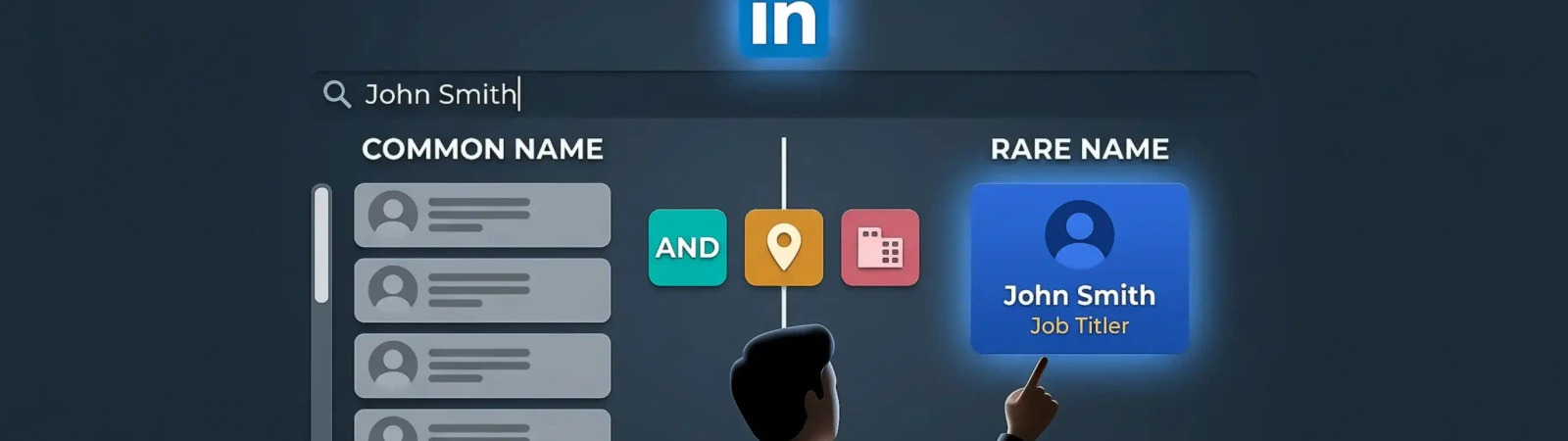
Searching LinkedIn by name is a foundational skill for recruiters, sales professionals, and networkers. A search as simple as that might sound easy enough. Still, LinkedIn has an enormous database of professionals, which is why one should search—and think— like a pro to filter the noise from the signal. If you are searching to reconnect with an ex-colleague or to create a new list of prospects, using the advanced filters is crucial. In this guide, you will discover how to optimize every single search inside a LinkedIn profile, and you will discover how to search a LinkedIn name that returns the right result every single time — at no cost.
Key Takeaways
- Quotation for Exactness: Wrap names in quotations to make the engine search for an exact match, which is crucial for common names.
- Filter Stacking: Use location, present company, and industry filters to narrow down thousands of irrelevant results.
- Boolean Proficiency: Utilize AND, OR, and NOT functions to build search strings for recruitment or lead generation, akin to a scalpel.
- Google site: Searching: Use the indexing power of Google to find public LinkedIn profiles when you reach LinkedIn’s monthly limits.
- Online Etiquette: Know how Private Mode works, and keep your searches professional and respectful.
LinkedIn People Search Basics
The platform is basically meant to achieve professional discovery. Millions of users look for specialists to get to know new industries or get free resources every day. The design of a LinkedIn people search is, however, not the same as that of an ordinary search engine. It operates on a social graph.
The Three-tier Visibility System
LinkedIn ranks your search results by the level of connection. And here is the inner weight of the platform:
1st-Degree: That is what you are connected to directly. When you search your name on LinkedIn, these profiles will nearly always be the first few on the list since the algorithm is convinced that you are seeking someone you already know.
2nd-Degree: These are friends of friends. There is one common link between you. These findings are very prominent and tend to present the entire name and headline of a person.
3rd-Degree and Out-of-Network: These are the hardest to locate. With a free account, LinkedIn can obscure the last name or the entire profile and indicate that these are LinkedIn Members.
It is important to understand this hierarchy. When searching outside your 2nd-degree network, name search can be useless since the algorithm is physically programmed to obscure them to you unless you apply certain filters or have a Premium account.
Basic Name Search on LinkedIn
For a standard linkedin profile search by name, the execution starts at the top navigation bar. However, the strategy diverges immediately based on the "commonality" of the name.
The Anatomy of the Search Bar
When you type a name, LinkedIn's "Type-Ahead" feature attempts to guess who you are looking for based on your recent activity. This is helpful for quick navigation but dangerous for research. If you click a suggestion, you are only viewing that one profile. To see the full scope of a name in the database, you must type the name and hit "Enter."
Managing High-Volume Results (Common Names)
Searching for a "David Miller" or "Wei Chen" can yield 50,000+ results. In these instances, the LinkedIn name search must be refined by "Current Company" or "Past Company" immediately.
- The Middle Initial Strategy: If you know the person’s middle initial, include it. It narrows the result pool considerably.
- Title Pairing: Search for "David Miller" "Project Manager". This ensures the search engine looks for the name and the specific job function as a single intent.
The Nuances of Rare Names
Rare names (e.g., "Thalassa Voreadou") are easier to isolate but harder to spell. If a rare name yields zero results, it is often due to:
- Transliteration Issues: Different alphabets (Cyrillic, Arabic, Mandarin) may be mapped differently to the Latin alphabet.
- Maiden vs. Married Names: Many professionals maintain their maiden name in their URL but change it on their profile display.
LinkedIn Advanced Search Techniques
The "All Filters" button is the cockpit of professional sourcing. If the basic LinkedIn search people query is the hammer, Advanced Search is the CNC machine.
Filter Stacking for Precision
To find a specific needle in the professional haystack, you shouldn’t just throw every filter at the wall and see what sticks. In fact, applying too many filters simultaneously is the number one reason high-quality leads "disappear" from your search results. Think of filter stacking like tuning a high-performance engine: you start with the core and then refine the details.
For the highest accuracy, you should apply your filters in this specific, high-intent order:
1. The "Category" Layer: People
It sounds obvious, but it’s the most skipped step. Always select the "People" tab first. If you don't, LinkedIn’s "Universal Search" will clutter your results with irrelevant company pages, recent posts, and even private groups that share the name you’re looking for. By locking in the "People" category, you’re telling the database to ignore the noise and focus strictly on individual profile objects.
2. The "Geographic" Layer: Location (The "Metro" Rule)
Location is the primary separator for common names. However, there’s a professional "hack" here: Use "Current City" or "Metropolitan Area" rather than just the "Country."
- The Problem: If you search for "John Smith" in the "United States," you’ll still have 50,000 results.
- The Solution: Use "Greater London Area" or "San Francisco Bay Area." A metropolitan area also catches professionals in surrounding suburbs who might be missed if you only typed the specific city name.
3. The "Employment" Layer: Current Company
If you have a good idea of where the person works, this is a strong filter.
- Pro Tip: In the "All Filters" menu, you will see both "Current Company" and "Past Company." If the person is a "stealth" job seeker, they might not have updated their current role yet. In that case, linking their previous employer with their name is often the only way to find their updated profile.
4. The "Domain" Layer: Industry & Function
This is your "safety net." If you have a name and a city, but the results are still too broad, apply the Industry filter. This is especially useful for finding experts when the name is common.
- Example: Searching for "Sarah Miller" in "Chicago" might show a lawyer, a doctor, and a software engineer. By checking the "Technology, Information and Internet" industry box, you instantly strip away the irrelevant profiles.
5. The "Connection" Layer: 2nd-Degree Connections
If you are still looking for "anyone" who fits a certain persona, toggle the 2nd-degree connections filter. This shows you people who are "friends of friends." Not only does this prioritize profiles that LinkedIn is more likely to show you in full, but it also provides a "social bridge" for when you finally hit that connect button.
6. The "Reset" Strategy
If you stack all these and hit "Zero Results," don't panic. It usually means you’ve been too specific. The human way to fix this is to remove filters in reverse order. Start by removing the Industry filter, then the Company filter. Often, you’ll find that the person simply listed their company under a slightly different legal name (e.g., "Alphabet" instead of "Google").
The "Past Company" Hack
Underrated but essential: the Past Company filter. Most ignore updates on their current role, while Past Company is a default entry that stays as a part of their digital footprint. Past Company Filter: If you're trying to track down a former colleague from a given startup, use the Past Company filter, which will return everyone who ever worked at a startup. More complicated investigations may require you to move beyond the platform.
Searching Without Logging In or Anonymously
There are many professional reasons to remain invisible during a LinkedIn profile search. Perhaps you are a recruiter researching candidates, or a salesperson doing lead qualification without wanting to trigger a "profile view" notification.
Public Profile Settings
LinkedIn allows users to decide how much of their profile is "public." Most professionals leave their profiles searchable by Google so they can be found by clients. You can use this by searching for the profile in an "Incognito" or "Private" browser window.
The Google site-search alternative
Google indexes LinkedIn profiles more efficiently than LinkedIn's own internal engine. By using the operator site:linkedin.com/in/, you are telling Google to ignore the rest of the web and only show you LinkedIn personal profiles.
- Example: site:linkedin.com/in/ "John Doe" "Seattle" "Software Engineer"
- Benefit: Unlike the conventional approach, this method does not illuminate a user that you've visited their page, and also does not count as a LinkedIn "Commercial Usage Limit".
Minos Profiler cross-references available records from public and commercial sources and builds a structured profile of a person: aliases, contact details, digital footprint, and connections.
Searching People with Common and Rare Names
The strategy for a LinkedIn profile search by name must adapt to the "rarity" of the target's identity.
The Common Name Matrix
| Name Type | Challenge | Primary Solution | Secondary Filter |
|---|---|---|---|
| Common | Too many results | Location + Current Company | School/University |
| Rare | Misspellings | Partial Name + Industry | Boolean "OR" variations |
| Global | Transliteration | Search by Email/Phone | Language Filter |
The Rare Name "Broadcasting" Technique
If you have a name that is extremely rare, don't use quotes initially. Let the search engine use its "fuzzy logic" to suggest similar spellings. If you still can't find them, try searching for their last name combined with a very specific skill (e.g., "Voreadou" + "Nuclear Physics"). This usually narrows the pool to a handful of individuals globally.
For rare names, the challenge is often a lack of data. If the person has a very niche name, they might not be on LinkedIn at all, or they may use a variation. In these cases, try searching the name against public sources outside LinkedIn. This is particularly helpful for international names where the English transliteration might vary.
LinkedIn Search for Recruitment and Networking
The intent behind a LinkedIn profile search dictates the workflow.
Recruitment Workflow
Recruiters rarely search by name alone. They search by "Archetype." However, when they do search by name (for a referral), they use the "Projects" feature in LinkedIn Recruiter to track the candidate's journey from "Identified" to "Hired."
Networking and Lead Gen
For business development, searching by name is usually the final step. You might find a company first, then search for "Head of Procurement" within that company. Once you have the name, you perform a LinkedIn name search to find their specific profile and check their "Activity" tab to see if they have posted recently. Engaging with a post before sending a connection request can make your request feel more natural.
Searching LinkedIn via Google
This is the "Pro" way to conduct a LinkedIn profile search by name.
Why use Google?
- No Limits: LinkedIn limits free users to a certain number of searches per month. Google has no such limit.
- Better Boolean: Google handles complex Boolean strings more reliably than LinkedIn’s internal search bar.
- Public Profiles: Google can show the public version of profiles that people have chosen to make searchable.
Advanced Google Search Strings
- To find a CEO in London: site:linkedin.com/in/ "CEO" "London"
- To find an Alumnus from Harvard working at Apple: site:linkedin.com/in/ "Harvard" "Apple"
- To find someone by a specific email domain: Use a LinkedIn search by email strategy combined with Google Dorks to find profiles linked to specific corporate domains.
LinkedIn Search Limits and Common Issues
Let’s be real: LinkedIn is a business first and a social network second. Their goal is to nudge you toward a paid Premium subscription, and the way they do that is by putting up "digital fences" right when you’re in the middle of a deep research session. If you’ve ever been on a roll and suddenly found yourself staring at blurred-out names, you’ve hit the LinkedIn wall.
Here’s a breakdown of the most common headaches you’ll run into and how to navigate them without losing your mind.
The Infamous Commercial Use Limit
This is the most common "gotcha" for power users. If you’re a high-volume searcher on a free account—maybe you’re doing a heavy linkedin profile search by name for a new project—LinkedIn’s algorithm will eventually decide you’re using the platform for "commercial purposes" (like recruiting or lead generation).
When this happens, your search results will suddenly look like a redacted government document. Instead of names, you’ll see generic "LinkedIn Member" placeholders. It’s incredibly frustrating, but there is a silver lining: this limit resets on the 1st of every month. If you hit the wall on the 20th, you’ve got ten days to master the "Google site search" technique mentioned earlier to keep working while you wait for the reset.
The "Invisible" User: Profile Visibility Settings
Sometimes, a linkedin name search comes up empty even when you know the person has an account. This isn't usually a bug; it’s a choice. LinkedIn offers very granular privacy settings that allow users to become virtually invisible to anyone outside their immediate circle.
- The Ghost Mode: Some users opt out of being searchable by their name or email address entirely.
- The "Out-of-Network" Cloak: If someone is a 3rd-degree connection or beyond, and they’ve set their profile to "Connections only," you won't find them through a standard linkedin search people query.
In these cases, your best bet is to find a mutual connection and ask for an introduction—the ultimate "human" workaround that no AI can replicate.
The "Ghost" Profile and 404 Dead Ends
We’ve all been there: you find the perfect candidate via a Google search, you click the link with high hopes, and... “Profile not found.” It feels like a digital bait-and-switch.
There are usually three reasons for this "Ghost" profile:
- The URL Shuffle: The user recently changed their custom URL (e.g., from linkedin.com/in/john-doe-123 to linkedin.com/in/john-doe-pro). Google’s index hasn’t caught up yet, leaving you with a dead link.
- The Great Deletion: The person may have deactivated their account or set it to private while you were searching.
- The Block List: If you’ve had a professional disagreement (or just a very persistent sales pitch) in the past, they might have blocked you. When someone blocks you, their profile effectively ceases to exist from your perspective.
The "LinkedIn Member" Mystery
If you see "LinkedIn Member" instead of a name, it doesn't always mean you've hit your limit. Often, it just means the person is too far outside your network. LinkedIn’s free version won't show the full names of people who aren't "connected to your connections." To bridge this gap, try searching for the specific name and company on Google to verify their identity before trying to connect.
Psychology and Etiquette of LinkedIn Search
There is a fine line between professional research and "stalking." When you perform a LinkedIn name search, remember that your digital footprint matters.
- The "Three-Visit" Rule: Try not to visit the same person's profile multiple times in one day if you aren't in Private Mode. It can come across as aggressive or overly curious.
- The "Mutual" Approach: If you find someone through a search, see if you have mutual connections. Asking for an introduction is always better than a cold "I found you via search" message.
- Transparency: If you are a recruiter, be honest. "I was searching for experts in Field and your profile stood out" is a professional and valid reason for a search.
For deeper investigations, such as Social Media Background Checks, ensure you are complying with local labor laws and privacy regulations, such as FCRA in the US or GDPR in the EU. Professional searching should always respect the boundaries of the platform.
Frequently Asked Questions
How to Search by First and Last Name
Type the full name in quotes (e.g., "John Doe") into the main search bar and filter by "People." This ensures the algorithm doesn't show you "John Smith" and "Jane Doe" separately.
Searching With Limited Information
If you only have a first name and a company, search First Name + Company Name. You can also filter by "Past Company" if you know where they used to work five years ago.
Searching Without a LinkedIn Account
Use a search engine like Google. Type site:linkedin.com/in/ followed by the person's name. This will show you the public version of their profile, though you won't be able to see their full "About" or "Experience" sections without logging in.
Understanding Connection Degrees and Limits
- 1st-degree: Direct connections. You see their full profile and can message them for free.
- 2nd-degree: "Friends of friends." You can see most of their profile but need to send a connection request to talk.
- 3rd-degree: Distant connections. Often, you can only see their name and headline unless you have a Premium account.
Boolean Operators and Complex Searches
- AND: Finds profiles with both terms.
- OR: Finds profiles with either term (great for searching for "HR Manager OR People Ops").
- NOT: Excludes specific terms (e.g., "Developer NOT Junior").
- Parentheses: Used to combine the above (e.g., "(CEO OR Founder) AND Tech").

This Signal Sits Inside the Minos Workflow
Watch
Detects relevant activity across configured sources and preserves the original evidence.
Explore →Risk
Assesses how serious the signal is and identifies what requires attention first.
Explore →Investigate
Uses Minos Profiler to quickly build a structured identity and risk profile from a known identifier.
Explore →Research
Adds analyst-led investigation when the available information is not enough to answer the wider question.
Explore →Response
Coordinates response plans with clear ownership, timing, and execution tracking.
Explore →See what Minos surfaces in your own information space
A 30-minute briefing on your own risk landscape — no slides, real data.