How to Find People on Discord: Username Lookup Guide for 2026

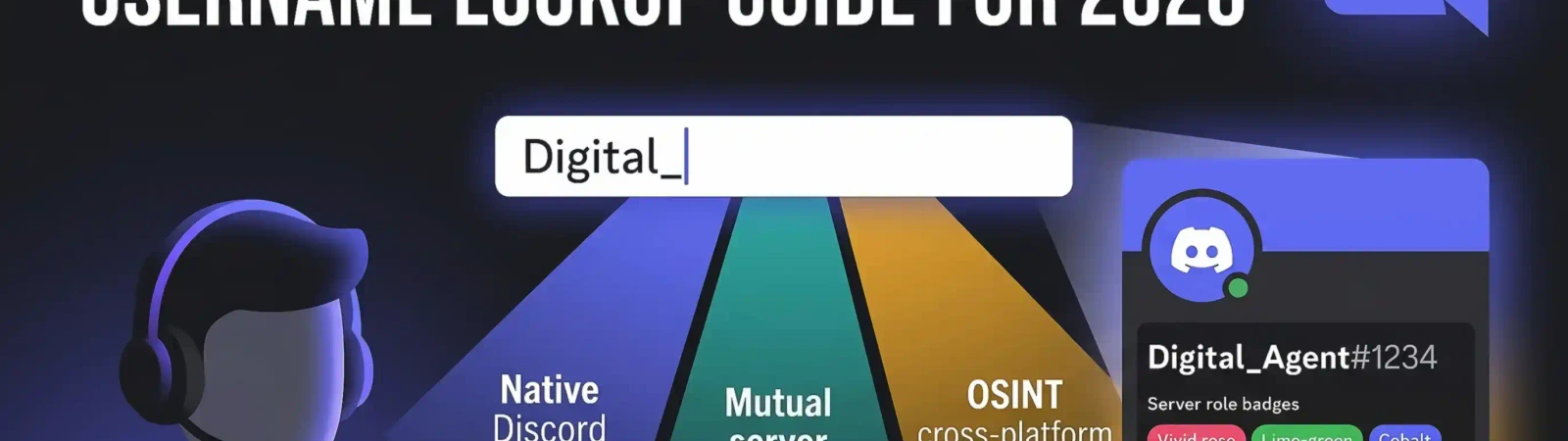
In case you are attempting to conduct a Discord username lookup so as to reconnect with an old gamer friend or check a new friend as part of a business endeavor, you have arrived at the correct location. Conducting a Discord user lookup is no longer as easy as it was following the big handle migration on the platform, though it remains quite possible to search Discord usernames and locate precisely the person you are seeking with the right tools.
Key Takeaway
- The Great Handle Migration: The new system is based on the use of unique, lowercase handles (e.g., @username) rather than the previous system of Names + 0000.
- Native Discovery Tools: The interface for adding friends, mutual server list, and sync contacts feature of mobile devices can be used.
- External OSINT Methods: Leverage a reverse username search to connect Discord identities to other social platforms.
- Safety & Compliance: Never put in an unethical search and never use third-party scrapers, which might threaten the integrity of your own accounts.
- Advanced Verification: For professional or high-stakes lookups, consider Social Media Background Checks to confirm identities.
Discord User Search Basics
The architecture of a Discord profile should be understood first to be able to find someone effectively. As opposed to the initial years of the app, nowadays, Discord separates your Username (a unique handle) and your Display Name (a nickname).
To know how to find a particular person, you need to pay attention to the handle that is unique. Display names are not unique in that there might be ten thousand users with the display name ShadowSlayer, but only one with the handle @shadowslayer. When searching for a Discord user by handle, always look for the @ symbol to be sure that you are addressing the right account.
Why the Change Happened
Discord has since abandoned the use of the discriminator system (#0000) to enable the site to be more user-friendly and human. This, however, represented a tremendous change in how power users and users who do a Discord lookup by username organize and store contacts. In case you had an old address book from before the change, those labels might no longer work.
How to Find Users Within a Server
In many cases, the individual you are seeking is already a member of a community you belong to. This is the easiest place to start.
1. The Member List Sidebar
In the desktop client, the right-hand sidebar will show all people who are in the server.
The sidebar will only display online or specific users in large servers (10,000+ members). In order to locate offline people, you should make use of the search option.
2. The Power of "From:" Search
One of the best tools for finding a user is the Discord search bar (top right).
- Type
from: [username]into the search bar. - This will list down all the messages that the user has sent in that particular server.
- From there, you can see their avatar and invite them to become your friend or send a DM (in case their privacy settings permit it).
Searching by Username or Tag
In case you are not on a mutual server, you will be required to search Discord usernames worldwide.
Adding a Friend Directly
To find someone directly, navigate to your Friends tab.
On Desktop: Click the Home button (in the top left) and choose Friends and press the green button to add a friend.
On Mobile: Tap on the You tab at the bottom, and then tap the Add Friends icon (typically a silhouette person with a plus sign).
Type the username with the correct spelling. A misplaced underscore or period will return a “User not found” error.
Case Sensitivity in 2026
Whereas most social platforms ignore casing, Discord handles are lowercase and can contain letters, numbers, underscores, and periods. If a tool gives you a name like CoolGamer123, type it as coolgamer123.
Importing Contacts to Find Friends
Most users lose the fact that Discord also has an in-built Find My Friend similar to WhatsApp or Instagram. It is an essential tool to help the user close the distance between their real-life acquaintances and their online self.
How to Sync Your Phone Book
- Open the Discord app on your smartphone.
- Go to User Settings (your profile picture).
- Navigate to Privacy & Safety.
- Find the "Sync contacts" toggle and turn it on.
Discord will then scan your phone numbers and email addresses in your address book. In case any of those details are associated with a Discord account, they will be displayed in a list of Suggested Friends.
Using Third-Party Tools for Discord Lookup
Sometimes, the native app doesn't provide enough context. You might have to go outside the app in the event that you are researching a potential scammer or you are searching for a lost business contact.
Open Source Intelligence (OSINT) is the practice of gathering publicly available information. For Discord, this often involves techniques that look for a user's footprint across the wider web.
Minos Profiler brings the available results together so the team can review where the same identifier appears across platforms.
- Step 1: Enter the known handle into a reverse username search.
- Step 2: Analyze the results to see if the same handle is active on Discord, X (Twitter), or GitHub.
- Step 3: Use the identified Discord handle to send a request within the app.
The necessity of these tools lies in the fact that a great number of users use their handles on several platforms. Chances are that they use the same (or similar) handle on Discord in case you encounter them on LinkedIn or Instagram.
How to Find Discord Servers
If you can't find the person, find their "habitat." Most active Discord users spend their time in specific interest-based communities.
Internal Discovery
On the desktop app, click the Compass icon ("Explore Discoverable Servers"). You can search for keywords like "Valorant," "Crypto," or "Art." If you know the person is a fan of a specific niche, you can browse servers for that niche, but join only communities you would genuinely take part in, and respect each server’s rules and each member’s privacy.
External Directories
Not all servers are "Discoverable" within the app. Many communities use external directories to grow:
- Disboard: The most popular public server list.
- Discord Me: Great for finding niche roleplay or hobbyist groups.
- Top.gg: Primarily for bots, but also lists associated community servers.
By using these directories to find relevant servers, you significantly increase your chances of a successful Discord username lookup.
Common Problems and How to Solve Them
Things can still go wrong even if you spell the username correctly:
- User not found: This typically means the username does not exist. Look for the usual substitutions (like the letter O substituted for a zero 0)
- Privacy Blocks: Users can limit who is able to send them a friend request (Everyone, Friends of Friends, or Server Members). You cannot add them if they have all three off unless you share a server.
- Status of "Invisible": User is not rendered in a list of server members, but that doesn't mean they aren't there. For example, perhaps they have the Invisible status, which puts them out of sidebar view.
- Deactivated Account: If a user displays as Deleted User random string, the account has been disabled, and the data is unrecoverable.
Discord Search Safety and Etiquette
Searching for people has its limits: there is a fine line that separates a friendly username lookup from digital stalking.
Avoid Spamming: This seems self-evident, but once a friend request is not accepted, do not create account after account after account to message that same individual!
Stay Away from Sketchy "Trackers": Never download a program that offers to "hack" a person's private info on Discord. These are almost always malware.
Be Respectful: Use a reverse username search and similar tools only if necessary to confirm identification or if you lost a work contact. Do not look for someone who has chosen not to be in touch.
This Signal Sits Inside the Minos Workflow
Watch
Detects relevant activity across configured sources and preserves the original evidence.
Explore →Risk
Assesses how serious the signal is and identifies what requires attention first.
Explore →Investigate
Uses Minos Profiler to quickly build a structured identity and risk profile from a known identifier.
Explore →Research
Adds analyst-led investigation when the available information is not enough to answer the wider question.
Explore →Response
Coordinates response plans with clear ownership, timing, and execution tracking.
Explore →See what Minos surfaces in your own information space
A 30-minute briefing on your own risk landscape — no slides, real data.